Switch between Operation Modes
You can use the C0_microSD_toolkit.py script from the Signaloid-Compute-Module-Utilities repository to switch between modes of operation.
The on-board LEDs indicate the active mode:
| LED behavior | Meaning |
|---|---|
| Red solid | Bootloader mode |
| Green solid | Signaloid SoC mode, application running |
| Green blinking rapidly | Flash operation in progress. Do not remove power |
| Red or green blinking | SWITCHING state: the blinking LED shows the next boot mode. Power-cycle to apply |
| No LED activity, no host connected | Custom user bitstream loaded. LED behavior is defined by the bitstream |
-
Insert the C0-microSD into your computer.
-
Identify the C0-microSD device path. For this example, we assume the device path is
/dev/disk4. You can find more details on how to identify your C0-microSD in Identify your module. -
Verify the active mode.
- A solid red LED means that the C0-microSD is in Bootloader mode (Figure 1).
- A solid green LED means that the C0-microSD is in Signaloid SoC mode (Figure 2).
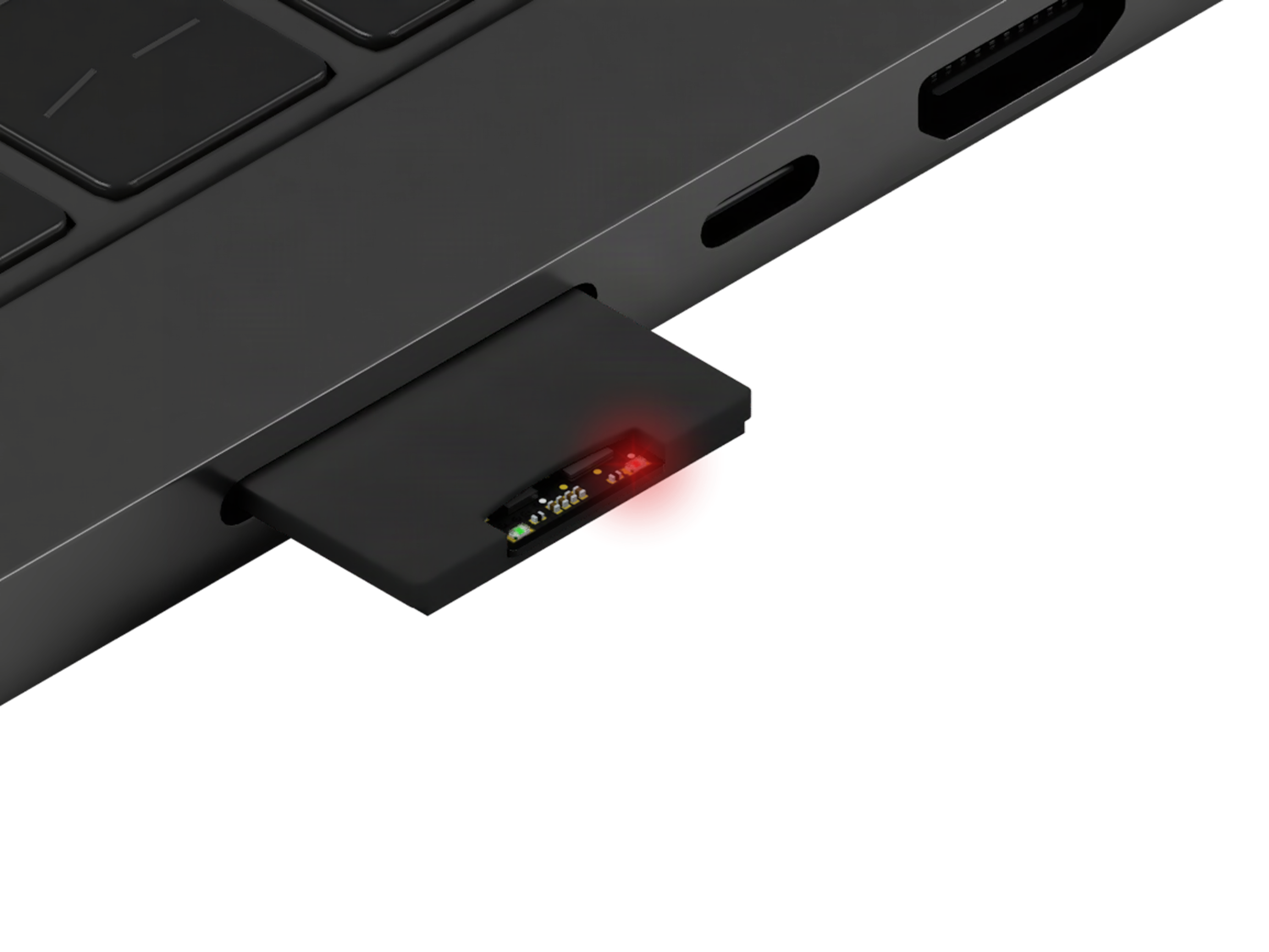
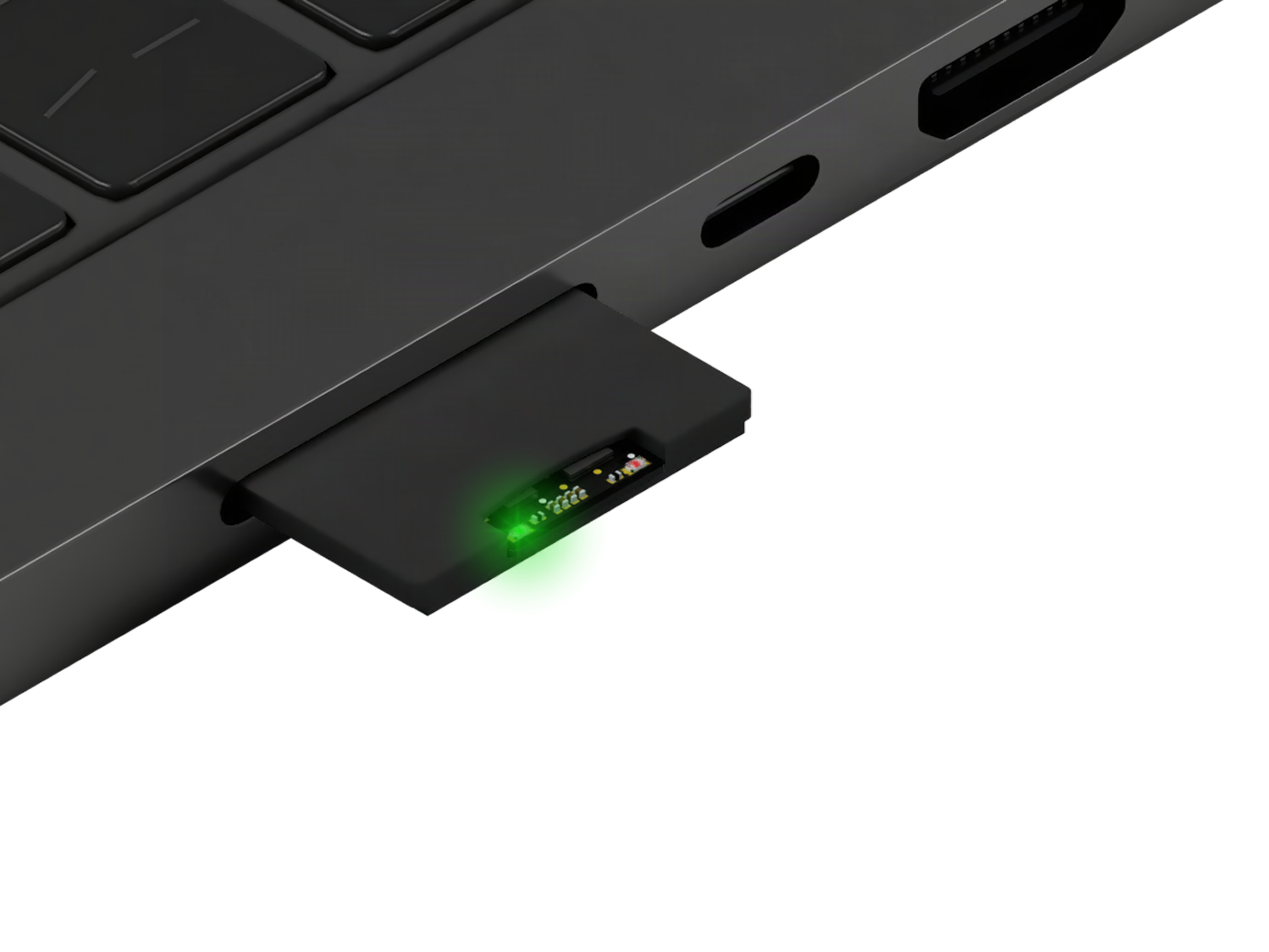
Figure 1: C0-microSD is in Bootloader mode. Figure 2: C0-microSD is in Signaloid SoC mode. -
Run
sudo python3 ./C0_microSD_toolkit.py -t /dev/disk4 -sto switch operation mode. If this is successful, the opposite LED of the one that is solid should start blinking (Figures 3 and 4).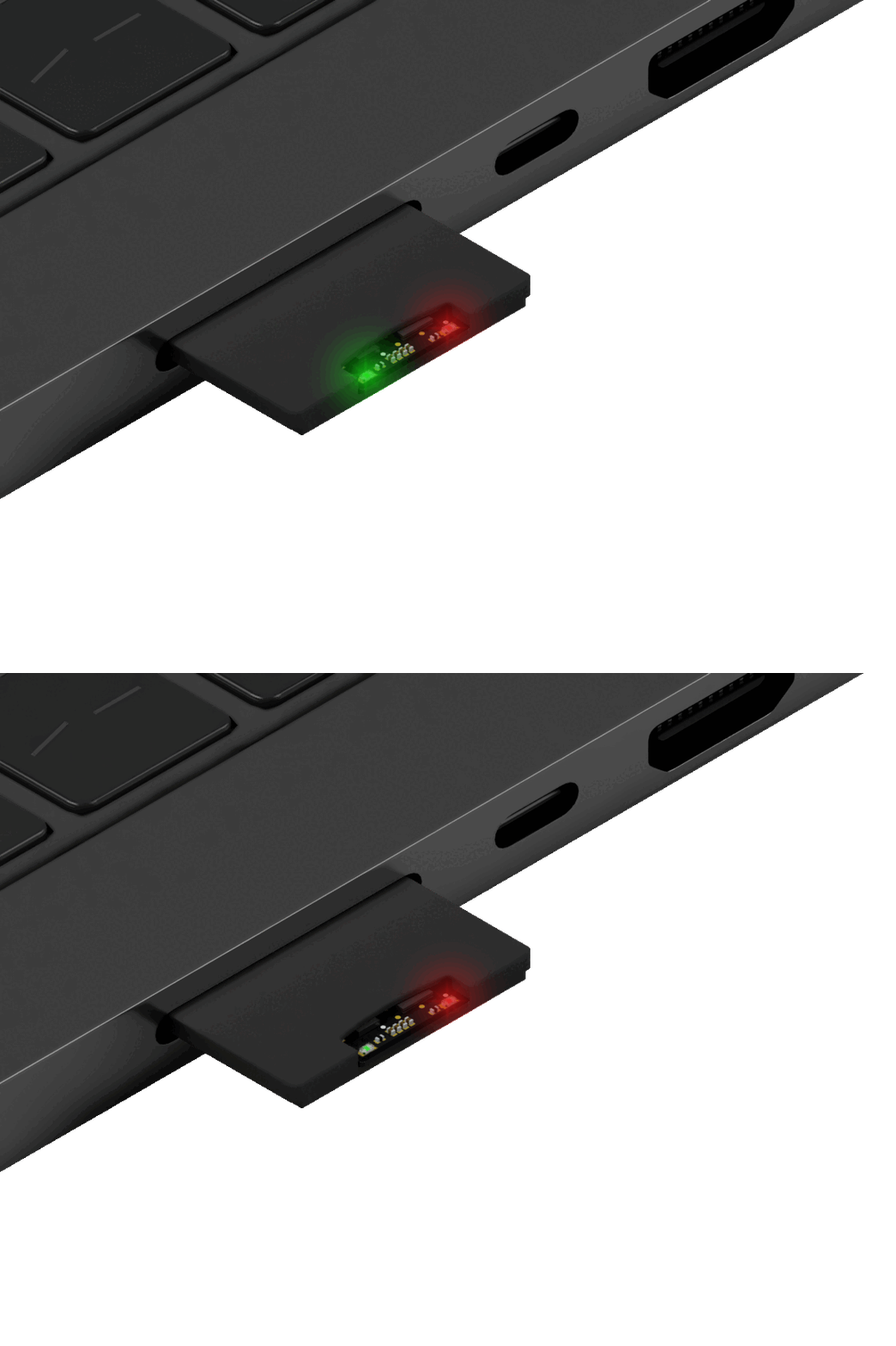
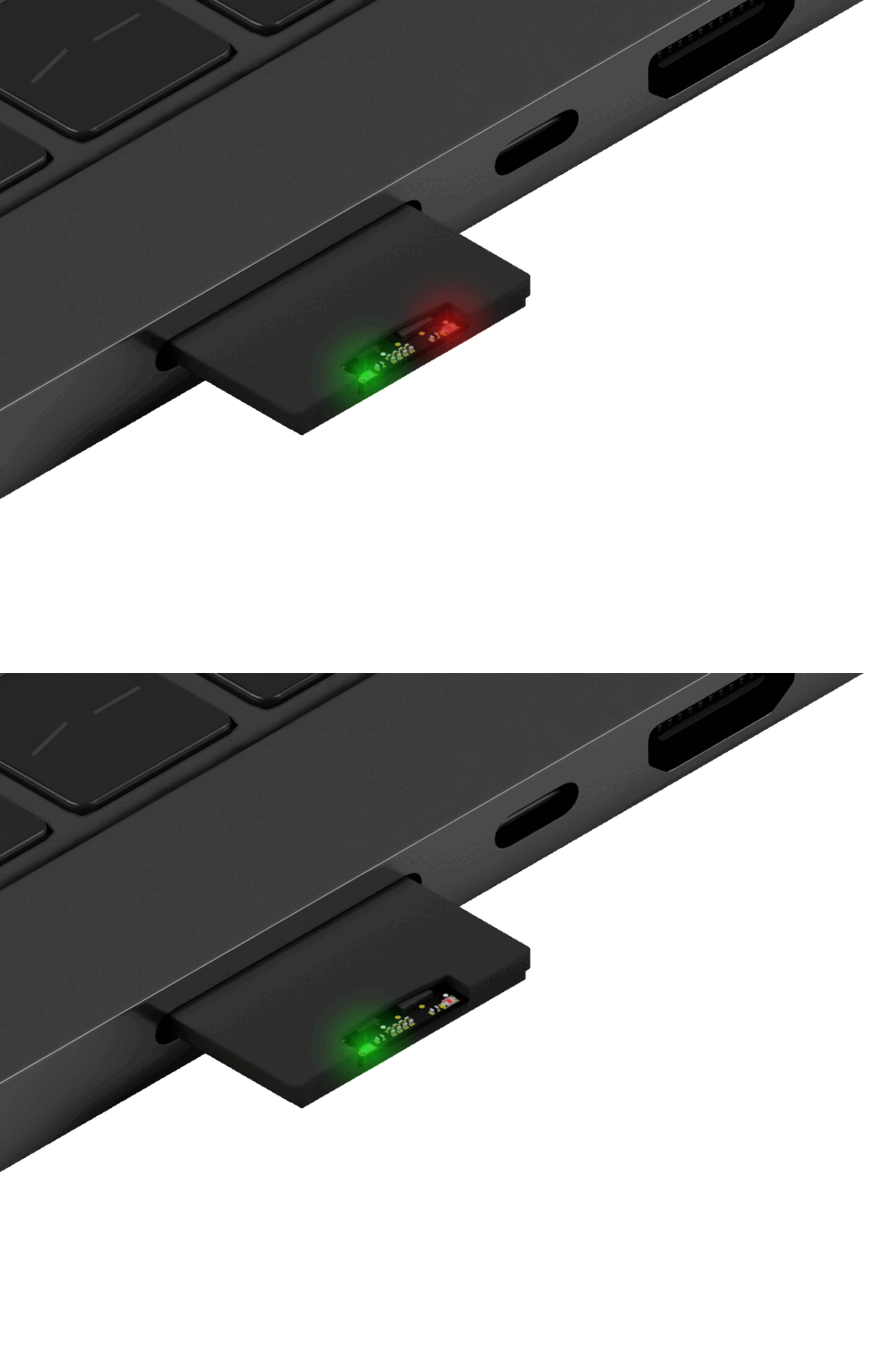
Figure 3: C0-microSD in Bootloader mode switching to Signaloid SoC mode. Figure 4: C0-microSD in Signaloid SoC mode switching to Bootloader mode. Following is an example output of switching the operation mode of a C0-microSD from Signaloid SoC mode to Bootloader mode:
% sudo python3 C0_microSD_toolkit.py -t /dev/disk4 -sSignaloid C0-microSD | Loaded configuration: Signaloid SoC | Version: 1.0 | State IDLESwitching device boot mode from Signaloid SoC to Bootloader...Device configured successfully. Power cycle the device to boot in new mode.Done. -
Power-cycle the C0-microSD to load new configuration mode. This means that the LED that was previously flashing should now be constantly on (Figures 5 and 6).
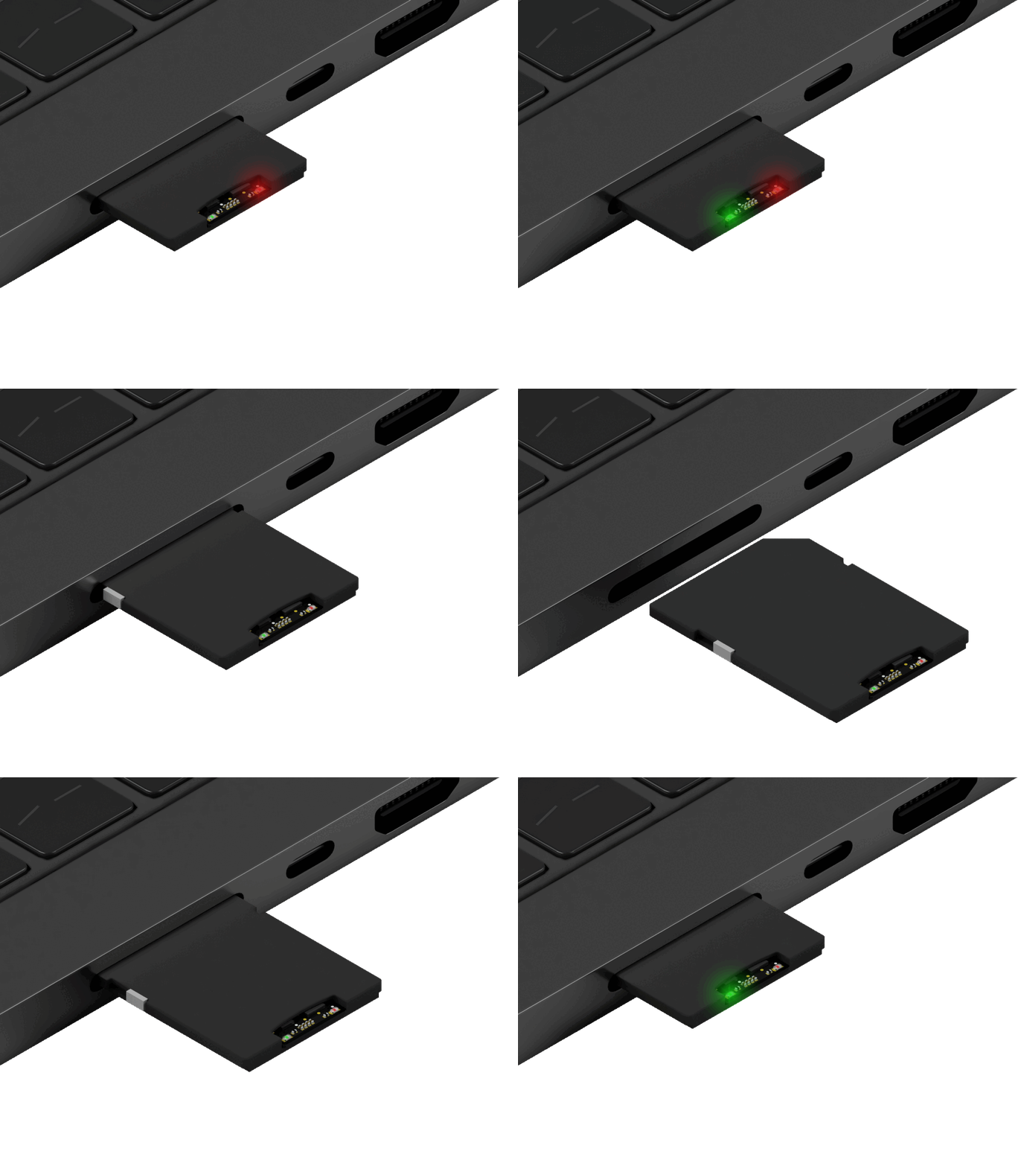
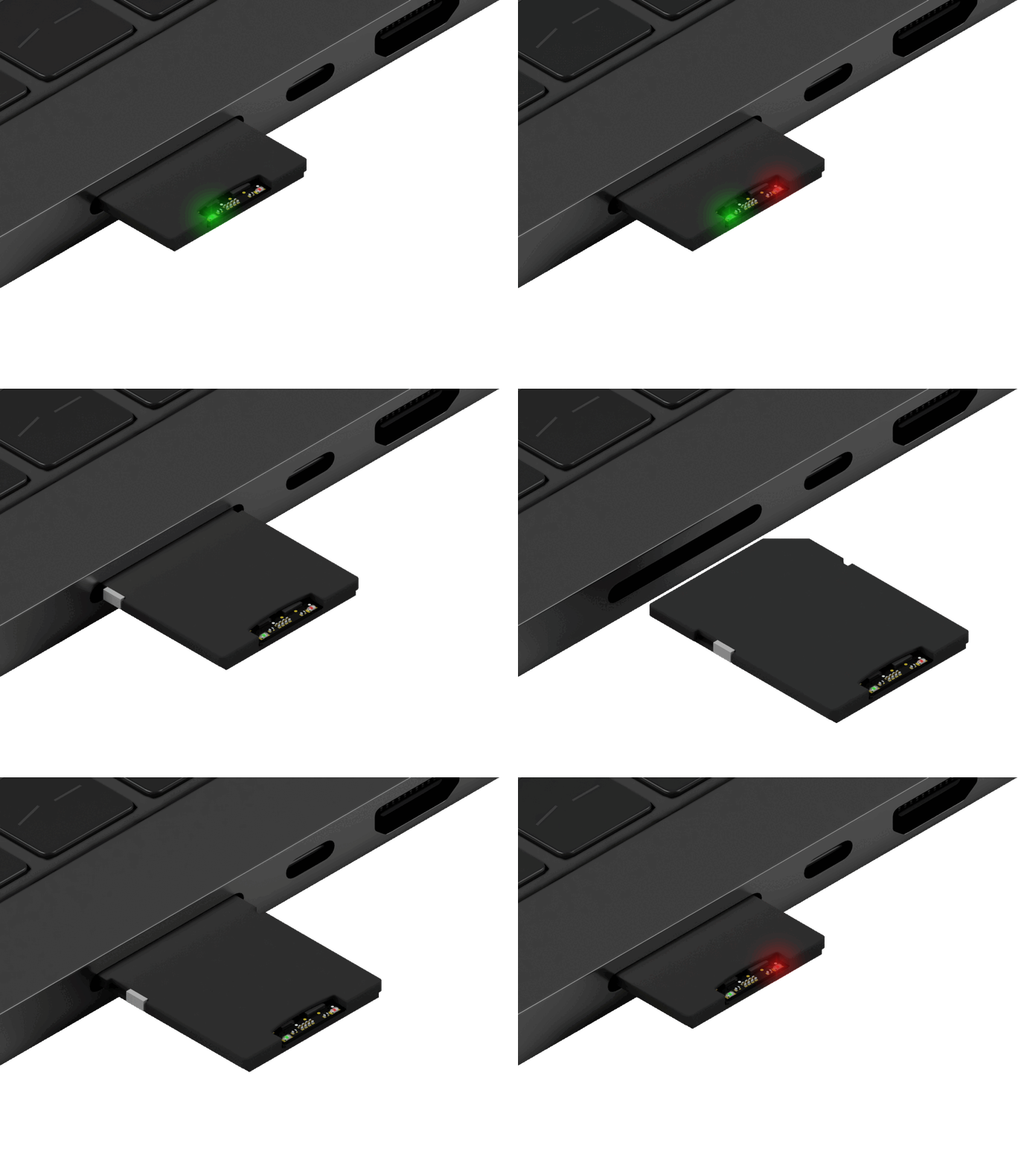
Figure 5: Power cycling the C0-microSD to switch to Signaloid SoC mode. Figure 6: Power cycling the C0-microSD to switch to Bootloader mode.
In the visualizations above, the C0-microSD has been inserted into a common off-the-shelf microSD to SD adapter.
Next steps
- Modes and Custom Bitstream, what each mode does and how the bootloader selects between them.
- Flash the C0-microSD, writing an application binary or a bitstream once the module is in Bootloader mode.
- Identify your module, confirming the device path and the active mode.
- Stuck? See Troubleshooting and FAQ.